The SAGE C4 expansion is currently being tested on the Public Test Realm (PTR), and it both overhauls core aspects of the much simpler SAGE Starbased game while adding huge swaths of additional gameplay. It effectively turns SAGE into a full 4X (eXplore, eXpand, eXploit, and eXterminate) game, with both PvE and PvP opponents and a diplomatic layer. As such, it needs every tutorial and guide it can get. At the same time, it is far too big to cover with a single guide.
As such, we are releasing a series of shorter guides focused on specific aspects of the game. After a few guides, we will release another one that ties everything together.
This guide is about the first thing you encounter after creating an account: The game map. As this is a strategy game, the map plays a very important role. At the same time, it is one of the primary ways you interact with the game.

SAGE C4 PTR – Welcome
Part 1 — The Galia Expanse
Star Atlas plays out in a small corner of the galaxy called the Galia Expanse.
At the broadest level, the expanse can be divided into four areas: the three player factions—the ONI, MUD, and Ustur—each occupy a Safe Zone (SZ), while a single Medium Risk Zone (MRZ) connects them.
In the future, the High Risk Zone (HRZ) will be added to the game’s map. The factions will have no control over this area at the start.
The current map, including the three Safe Zones and the Medium Risk Zone that connects them, consists of 945 star systems. These are grouped into 69 regions.
Of these 69 regions, each faction has an iron-clad grip on a cluster of five neighboring regions, which form its respective Safe Zone. Of the remaining 54 regions, 18 lie within each faction’s sphere of influence.
At the start of the game, factions only have a small measure of control over 12 of those 18 regions, and not a very strong one. The remaining six are completely outside of their control. Despite that, all regions are named after one of the three player factions.
Regions and Star Systems
Regions
Each region consists of anywhere between five and 21 star systems. A small number of these are marked as Core systems. They are connected to one another through warp lanes and therefore play an important role.
One Core system is the true heart of the region. This is the so-called King system: the seat of the region’s government and the center of that region’s warp lanes.
Star Systems
Every star system is represented in-game by one to three stars, its planets and asteroid belts, and a Starbase.
Although these objects visually exist in different locations, as we would expect from a space-based strategy game, they all occupy the exact same location in the underlying on-chain game data.
Fleets move between entire star systems and across regions filled with star systems. Movement within a single system would occur on a much smaller scale, so the team decided not to require additional on-chain transactions for such small movements.
Every star system, including its planets, asteroid belts, and starbase, exists as a single coordinate point on the game map. This results in some strange fleet movement quirks, in terms of time and cost, in and around a system.
Because the stars, planets, asteroid belts, and Starbase all share the same location. That means a fleet technically does not need to travel when moving between any of them. The game does, however, add a small movement cost by imposing fixed fees when taking certain actions within the star system.
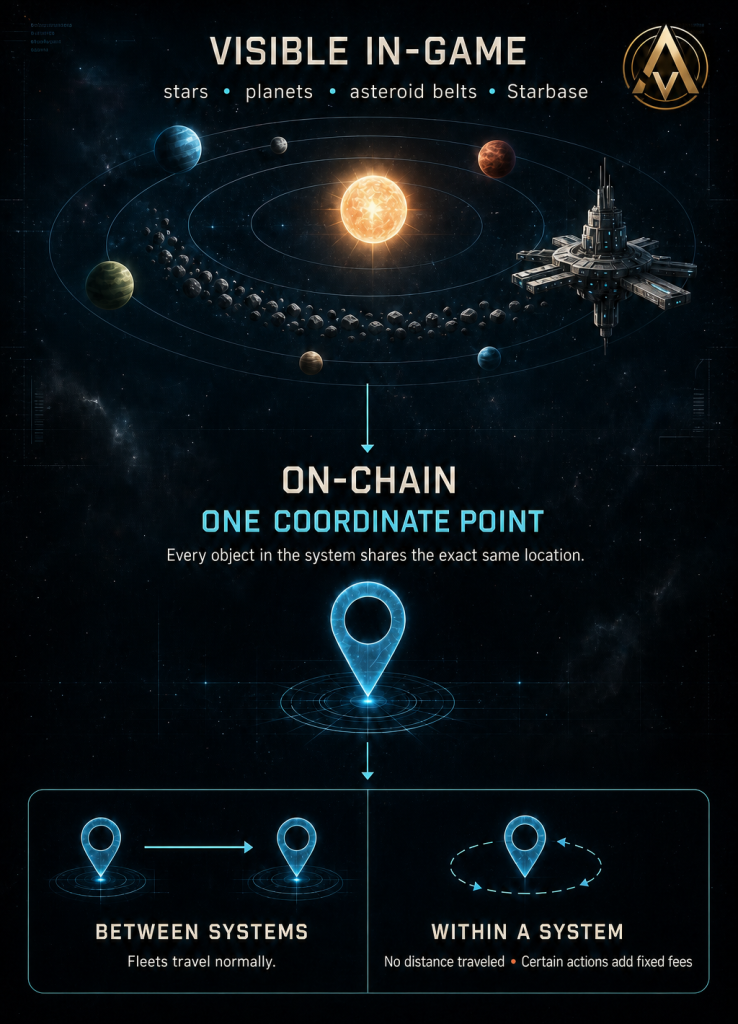
Every star system, including its planets, asteroid belts, and starbase, exists as a single coordinate point on the on-chain game map
Planets
Every star system has between zero and seven planets. There are several archetypes, which influence the types of resources found there:
- Terrestrial
- Volcanic
- Barren
- Gas giant
- Ice giant
- Dark
- Oceanic
Planets cannot be interacted with directly. They currently serve only one purpose: enabling players to deploy Claim Stakes and Cultivation Stakes to extract or grow resources and automatically refine or process them. You can do so, and manage these assets, through the Starbase Menu.
Claim & Cultivation Stakes make up a large part of the game, so we will dedicate a separate guide to them in the future.
Asteroid Belts
Every star system has between one and four asteroid belts. Their primary purpose is to allow fleets to mine resources as well. Mining ships clearly excel here, but all ships are able to mine.
The output of manual mining is easily eclipsed by fixed Claim Stake setups on planets. But, on the plus side, a fleet can freely travel to other locations to mine, whereas a Claim Stake is stationary.
Territorial Control
Starbases
Every star system in the Galia Expanse has a Starbase in orbit around its star or stars. Whichever faction controls the Starbase controls the system.
Starbases are therefore the primary targets in faction wars and attacks, as conquering one transfers control of its system to the victors.
A freshly conquered Starbase starts at Tier 0 and can be upgraded in five steps to Tier 5. Every tier upgrade boosts the station’s defenses while also increasing the faction’s control over the system as a whole. In practical terms, this opens additional slots on the system’s planets for placing Claim & Cultivation Stakes.
Unlike in other games, there is currently no need to attack planets to conquer a system. In fact, planets cannot be attacked in the current version of SAGE. Beyond fleets, only Starbases can be attacked, and only the Starbase must be conquered to assume control of the system.
Starting Control and Neutral Systems
At the start of the game, each faction controls all Core systems—including the King system—in its five Safe Zone regions and in 12 of the 18 Medium Risk Zone regions in its sphere of influence.
All other systems, including all systems in the remaining six Medium Risk Zone regions per faction, are considered Neutral.
“Neutral” is a bit of a misnomer, as these systems are occupied and controlled by a wide variety of minor factions. Some are openly hostile, while others are more passive. However, all of them will rise to protect their system from invasion, no matter which faction attempts to conquer it.
Neutral systems form an important part of the Player versus Environment (PvE) component of SAGE. At the start of the game, the vast majority of systems are neutral and waiting to be conquered by players on behalf of their faction.
Controlling a Region
For a faction to gain control over a region, it must conquer at least:
- 60% of the region’s Core systems
- The King system
The King system is itself a Core system, so it counts toward the 60% requirement.
Meeting these requirements counts as partial control or partial ownership. Full control or full ownership requires a faction to control every system within the region.
Fully or partially controlling regions is of crucial strategic importance, as it allows a faction to extend its Safe Zone and reduce its exposure to enemy incursions.
Neighboring Regions
Regions count as neighbors only if a warp lane directly connects a star system in one region to a star system in the other.
In other words, Region A and Region B are neighbors if a star system in Region A has a direct warp-lane segment—with no intermediate systems—to a star system in Region B.
Permanent Safe Zones
The five regions with which each faction starts the game form its permanent Safe Zone. They can never be conquered, and their ownership cannot be wrested away by another faction.
These 15 regions—five per faction—are the only regions with this level of protection. Every other region in the game can be conquered, though not always directly.
Enemies cannot enter a Safe Zone, let alone attack a fleet or Starbase inside one.
Extended Safe Zones
A faction can, at least temporarily, extend its Safe Zone and even create new Safe Zone “islands.” To do this, it must bring a region under full control and ensure that all neighboring regions are at least partially controlled by the same faction.
In other words, a fully controlled region becomes a Safe Zone if each of its neighboring regions is either:
- Fully controlled by the same faction; or
- Partially controlled by the same faction, meaning that the faction controls at least 60% of its Core systems and its King system.
If the newly protected region neighbors one or more of the five regions in the faction’s permanent Safe Zone, it effectively extends that zone. If it does not, it becomes a Safe Zone island.
This reduces the area in which the faction can be attacked. In turn, it allows the faction to concentrate more of its defensive forces in the remaining exposed regions.
Conquering a Starbase
When attacking another faction’s Starbase, you must destroy it one tier at a time. Each time you fully deplete the Starbase’s health, only one tier is destroyed, after which the Starbase regenerates to full health and a full shield at its new (lower) tier.
Once a Tier 1 Starbase is destroyed, it will swap to the faction that fired the final shot, while at the same time dropping to Tier 0.
Warp Lanes
Warp lanes offer a third mode of travel between systems, alongside Warp and Subwarp. They are the quickest way to travel and, in addition to Fuel, come with an ATLAS cost.
Warp lanes only exist between some neighboring star systems. Most have to go without. Systems that are connected to a warp lane are Core systems.
A warp-lane segment between two systems becomes active only if both ends are under the control of the same faction.
If a system in the middle of a faction’s warp-lane network is lost to another faction, that node becomes unreachable, and the route can no longer be used. Unless another route connects the nodes on both sides, the faction is left with two separate warp-lane networks.
Part 2 — Game Interface: The Map
Now that you know the lay of the land, let’s look at how all of this is represented in the in-game user interface.
SAGE C4 – The Game Map
Galaxy and Region View
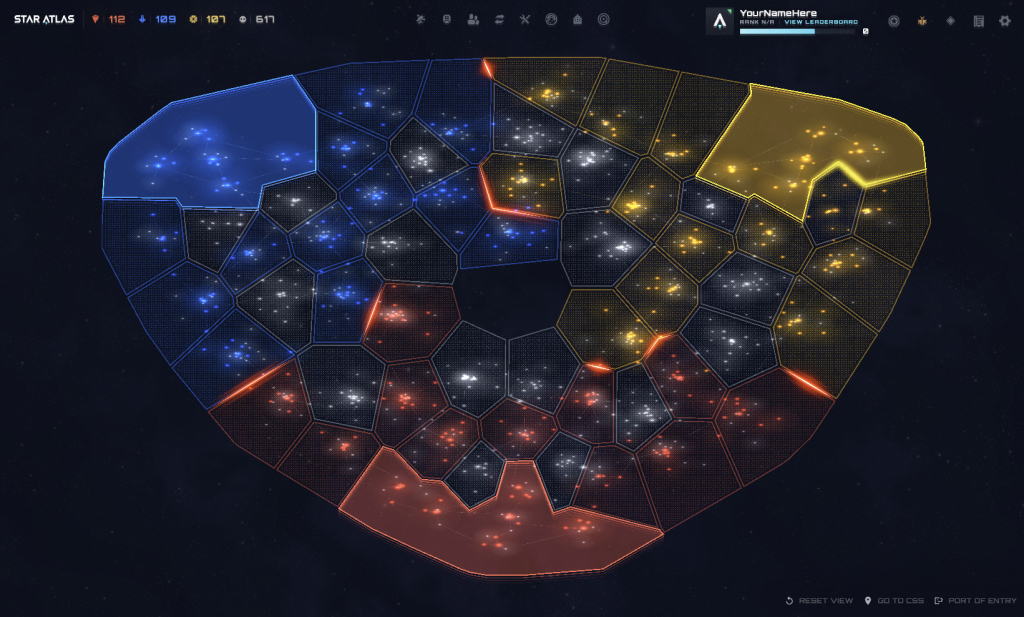
When you first load the game after creating your account, you are greeted by a game map divided into colored regions. There are four colors:
- Red: MUD-controlled regions, whether partially or fully controlled
- Blue: ONI-controlled regions, whether partially or fully controlled
- Yellow: Ustur-controlled regions, whether partially or fully controlled
- Gray: All other regions. These are either Neutral or mostly neutral, and no faction has the upper hand in them.
Clicking a Region selects it, but nothing else happens. Double-clicking zooms in to the region and shows a sidebar with all the star systems within it.
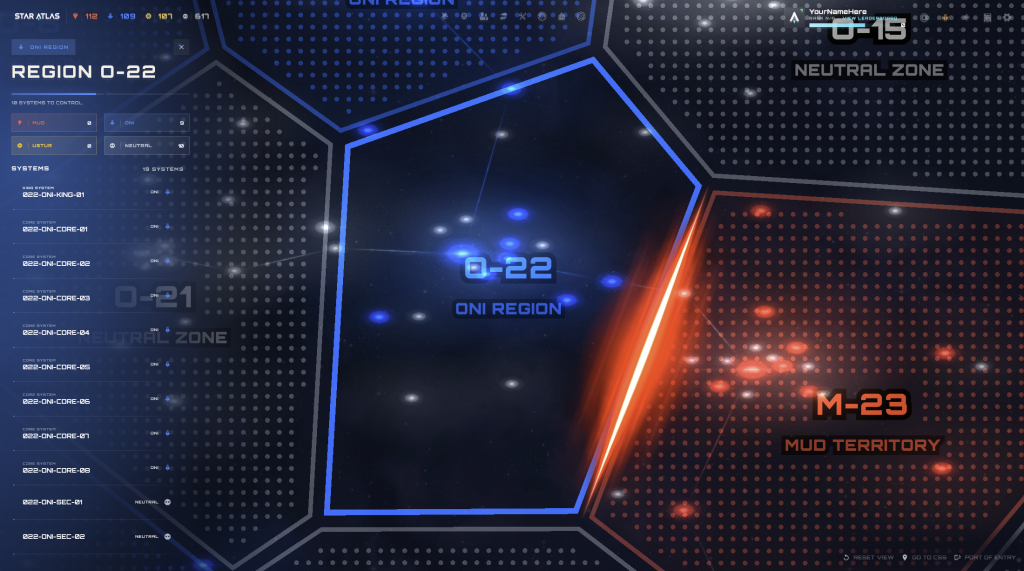
SAGE C4 – The Game Map – Double-clicking a Region
At the top of the sidebar, you can quickly see how many systems in the region are owned by the various factions. This is followed by a list of star systems plus their owner. Clicking one will immediately select the system and zoom in on it.
Of course, you can also use your mouse to zoom in and out of the galaxy
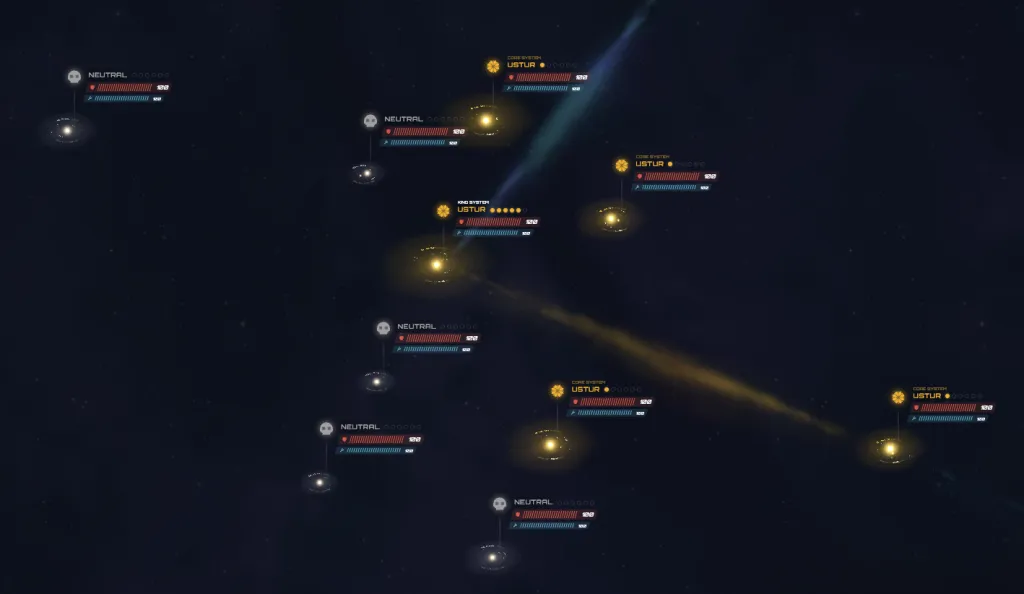
SAGE C4 – The Game Map – Inside a Region
Here you can see stars with billboards floating above, pointing directly to the Starbase in each system. It shows the starbase’s controlling faction, tier (represented by the dots), health, and shield levels. If the system is a King or Core system, a label that says so will be visible there as well.
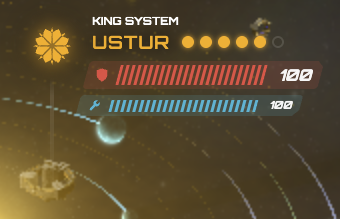
SAGE C4 – The Game Map – Close up of a billboard
Star System View
Zooming farther into a star system brings its planets, Starbase, and any nearby fleets into clearer view. The planets are slowly orbiting the star(s), while the asteroid bars twinkle in the light. If there are warp lanes connecting to the system, you will notice one or more warp gates at the very outskirts of the system.
Clicking anywhere within the far-reaching glow of the system’s star(s), including on its planets or Starbase, will select the system.
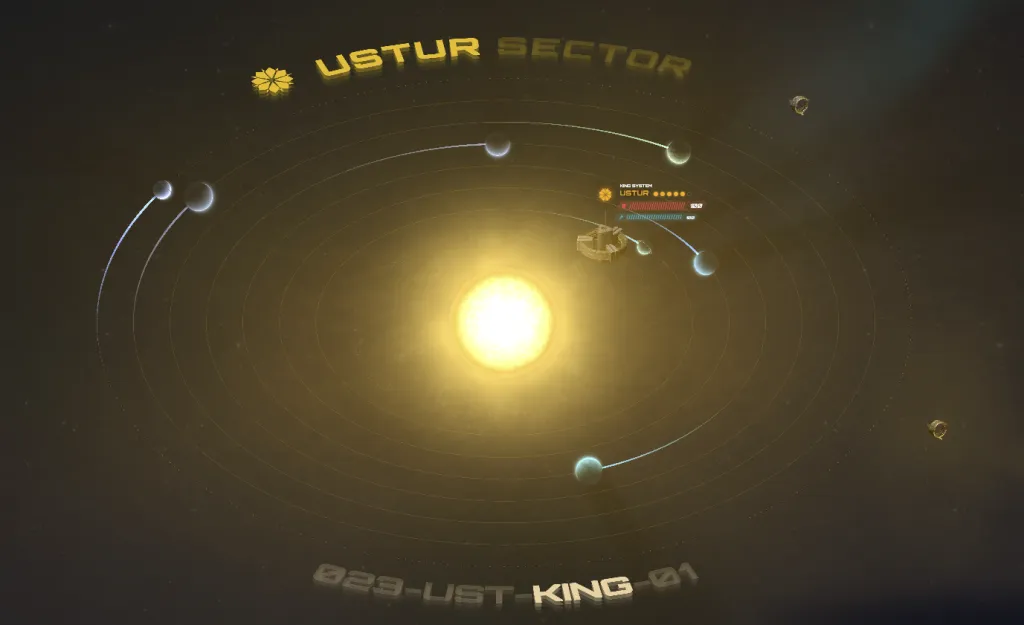
SAGE C4 – The Game Map – A Star System
A sidebar opens on the left, and the system is brought into full view (if it wasn’t before). Here you can see its name and billboard information again, followed by two buttons and a list of celestial bodies.
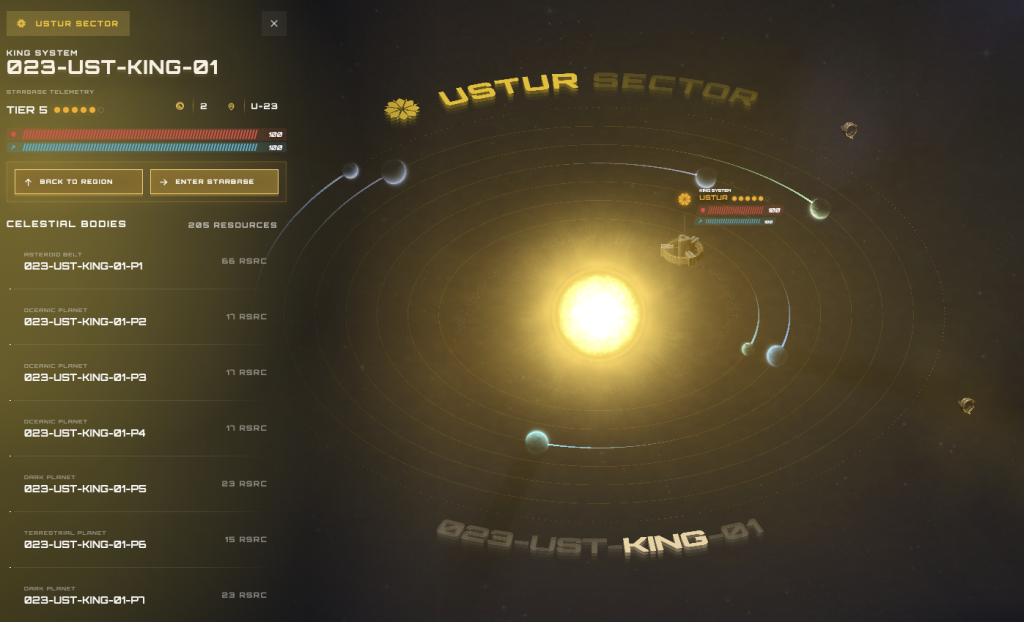
SAGE C4 – The Game Map – A Star System (selected)
The planets and asteroid belts are sorted by their proximity to the system’s center. Each body lists its name and the number of resources found there. Clicking one expands a new list showing exactly which resources it contains. The dots behind each resource represent its richness.
Of the two buttons, Back to Region zooms out to the full region and (re-)lists all systems in the sidebar. The other, Enter Starbase, is the more important of the two, as it opens the menu for managing your operations in that system. We will cover that menu in a later guide.
Fleets on the Map
You cannot send an individual ship into space without first placing it in a fleet. A fleet can consist of a single ship or multiple ships, though the maximum number depends on your Council Rank. Expect a separate guide on fleet creation later.
For now, you only need to know that fleets are created at the Starbase where you have ships available. At the start of the game, this is your faction’s Central Space Station (CSS). Open the Starbase and go to Hangar to create a fleet.
Once a fleet exists and has undocked from the Starbase, which can also be done from the Hangar, it appears on the map. You can click it directly to interact with it.
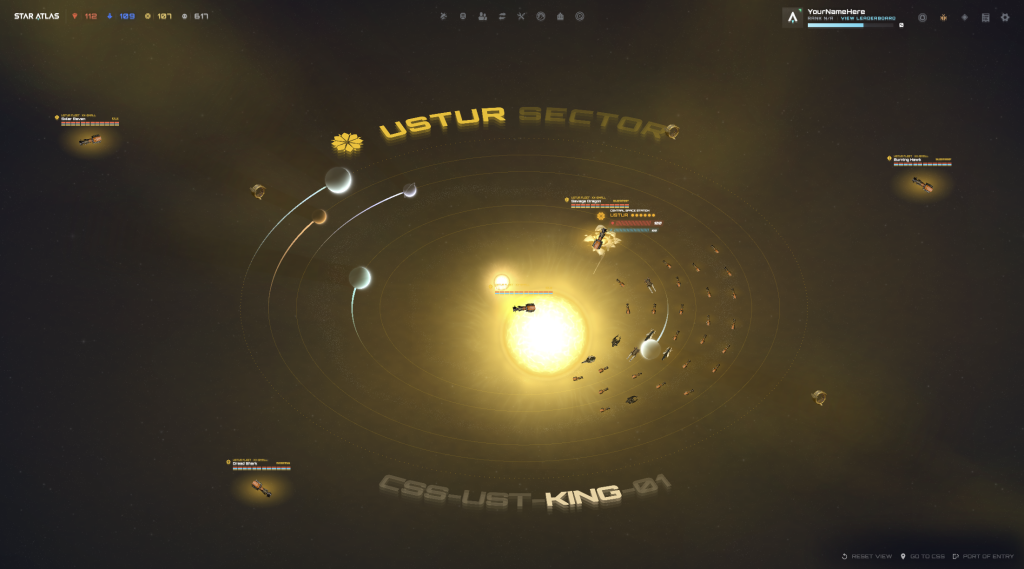
SAGE C4 – The Game Map – System with lots of fleets
You will notice fleets in several different locations. There are some bigger-sized ship icons with their name and status bars floating above them. These are positioned on the galaxy map. All such ships not parked exactly in the center of the system are not actually inside the star system.
Remember that the system only occupies a single point in the galaxy, yet is portrayed here with its planets and asteroid belts fanning out. In reality, this visualization completely overflows the system’s actual space on the map. It overlaps with actual space outside of the star system.
The center of the star system is where it is actually located in the galaxy. Everything beyond that small point is space outside of the star system.
That said, note the huge swath of smaller-sized ships, parked to the right side of the star. These are all in orbit of the star. They did not just fly to the star. They docked (or were formed) and then undocked from the starbase there to get in orbit. There is no info floating above them until you hover over one.
Looking at the screenshot above, you can see:
- Three fleets (all three Fimbula Airbike) that are clearly outside the star system
- A fleet (Fimbul Airbike) on top of the Starbase, which is also outside the star system
- A fleet (Fimbul Airbike) in the exact center of the system. This fleet is inside the star system.
- A swath of smaller fleets parked to the right side of the system’s stars. These are all in orbit.
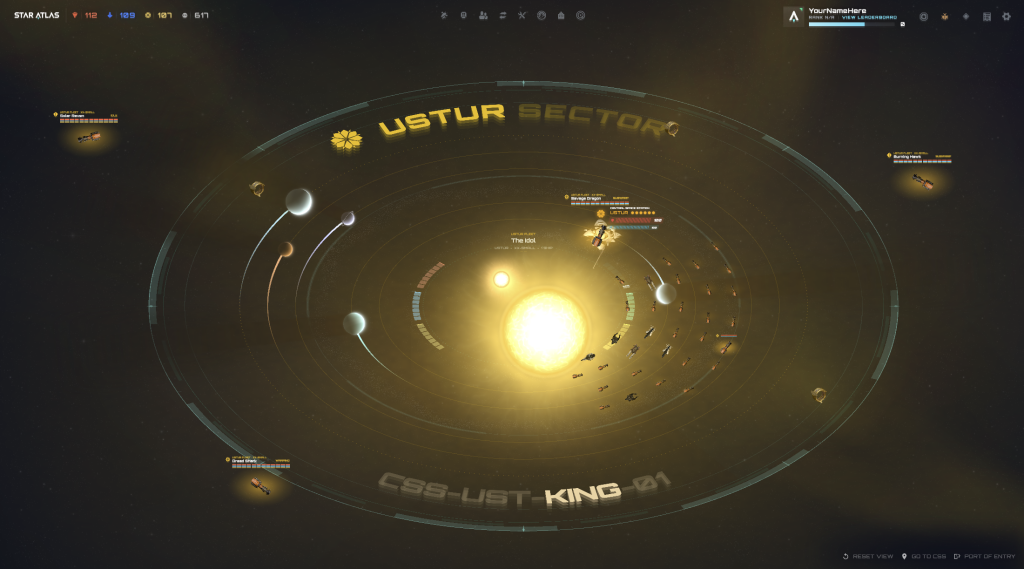
SAGE C4 – The Game Map – Operational Radius centered
Clicking on a fleet will pop up their action radius circle, name, some details, and stat bars. If the fleet is in orbit, the circle’s center will be the system’s center, not the actual ship icon representing the fleet.
If the fleet is not inside the system, then the circle will center on the fleet itself.
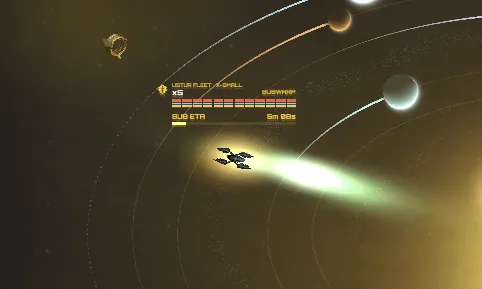
SAGE C4 – The Game Map – Moving fleets will show a clear trail
Fast (User) Travel
To wrap this guide up, let’s finally look at a few handy buttons that allow you to navigate the map:
First off, in the bottom right of the screen are 3 link buttons:
- Reset View — Zoom out all the way to the full Game Map
- Go to CSS — Zoom in all the way and center on your faction’s Central Space Station
- Port of Entry — Not Game map related, but the first button you should click after entering the game for the first time