It’s been a long time coming, but Local Markets are here!
In the Galia Expanse, there are, at present, 51 star systems that can be visited. Each Faction controls 17 of these, five lying within their Safe Zone (SZ) and an additional 12 in their Medium-Risk Zone (MRZ). The High-Risk Zone (HRZ) is not yet in play.
Every star system boasts a Starbase, which serves as a hub for players to manage fleets, load or unload cargo, and assign crew for crafting items. Among the five Safe Zone systems per Faction is one standout system—the location of the Faction’s Central Space Station (CSS).
As of today, 48 of these Starbases (all minus the CSS) have been upgraded with a Local Marketplace. This major update enables players to create buy and sell orders for resources directly at a Starbase, streamlining in-game trading for everyone!
The three Central Space Stations are an exception. Instead of sporting their own Local Marketplace, they have been given direct access to the Galactic Marketplace!
But there’s so much more to this update—let’s break it all down!
Local vs. Galactic Market
The Galactic Marketplace—originally launched on August 4, 2021, and revamped to V2 on July 22, 2022—is the primary trading hub for Star Atlas assets*. It’s also where most trading takes place, though it has received stiff competition from over-the-counter (OTC) trading, which is quite prevalent among players who manage large inventories.
The Galactic Marketplace functions like any other blockchain marketplace, allowing anyone to trade assets, regardless of their involvement in gameplay. The downside, however, was that resources needed to be exported out of the SAGE game environment to become tradable there.
This changes today. With the addition of Local Markets, there are now 48 additional in-game marketplaces. And there are a few big differences between the two types:
Galactic Marketplace: Trades are directly from your wallet and are accessible anywhere.
Local Marketplaces: Require assets to be at the Starbase for listing or pickup, keeping the trade experience grounded in the game’s universe.
Both experiences are fully on-chain, and though the UI for Local Markets currently exists only within SAGE, this will no doubt find its way outside at some point as well.
*) The Galactic Marketplace does not yet support true NFT assets. Only Semi-fungible tokens (SFTs) are supported. This is why Crew Cards (true NFTs) are traded on platforms such as Tensor and why a handful of promo assets from the early days can not really be anywhere at the moment.
Locality
Unlike the Galactic Marketplace, where you trade directly from your wallet, Local Markets require your assets to be physically located at the corresponding Starbase. Items purchased through these markets are delivered to the Starbase as well. This means that while you can create orders remotely, you’ll need to first supply the Starbase before you can list items for sale, and you’ll need to pick up any items you’ve acquired there as well.
Community Development
Both Marketplaces exist on-chain, and therefore, community developers can interact with them. This means that, despite there being no Local Market interface outside of the game, such an interface could still be created by community members. However, there is technically no way to bypass the Starbase locality restriction, meaning such community programs will not suddenly enable players to trade items directly from their wallets there, let alone enable players to receive any purchased goods to their wallets.
Benefits
There are a lot of benefits to Local Markets, some obvious and some less so. Below, we’ll go into three key ones:
- Less freighting: You no longer need to haul resources out to the CSS to sell them on the Galactic Marketplace. Instead, you can list items at your nearest Starbase. Similarly, you can buy resources locally without the hassle of freighting them across the galaxy. While you might see slightly different pricing, you’ll save valuable time and fuel.
- **Freighting as a Profession: Though there is no official Freighting career just yet, players selling their resources at a (potentially nearby) Starbase will create arbitrage opportunities for others. Freighting specialized players can pick these (cheaper) resources up and (if they do not need them themselves) ship them to the CSS to sell on the Galactic Marketplace.
- **Boosted In-Game Economy: With more trading taking part inside of the game, there will be less over-the-counter (OTC) trading happening outside of it. This will keep more of the economic activity in-game. A not-unpleasant side-effect of this is that there will be more Marketplace fees flowing to both the team (to build the game) and the DAO (to safeguard and expand the ecosystem).
How to Use the Local Markets
Ready to dive into the Local Markets? Here’s a step-by-step guide!
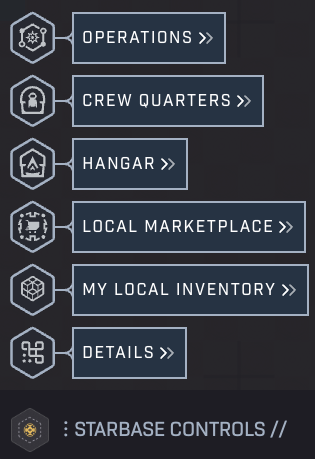
SAGE – Starbase Controls
Accessing & Navigating the Interface
To access the Local Marketplace in SAGE Labs: Starbased, follow these steps:
- Click on any friendly Star system to open the Starbase Controls.
- Select the Local Marketplace option (this replaces the LP Exchange, though the Exchange is still accessible via this option).
- A popup similar to this one will appear:
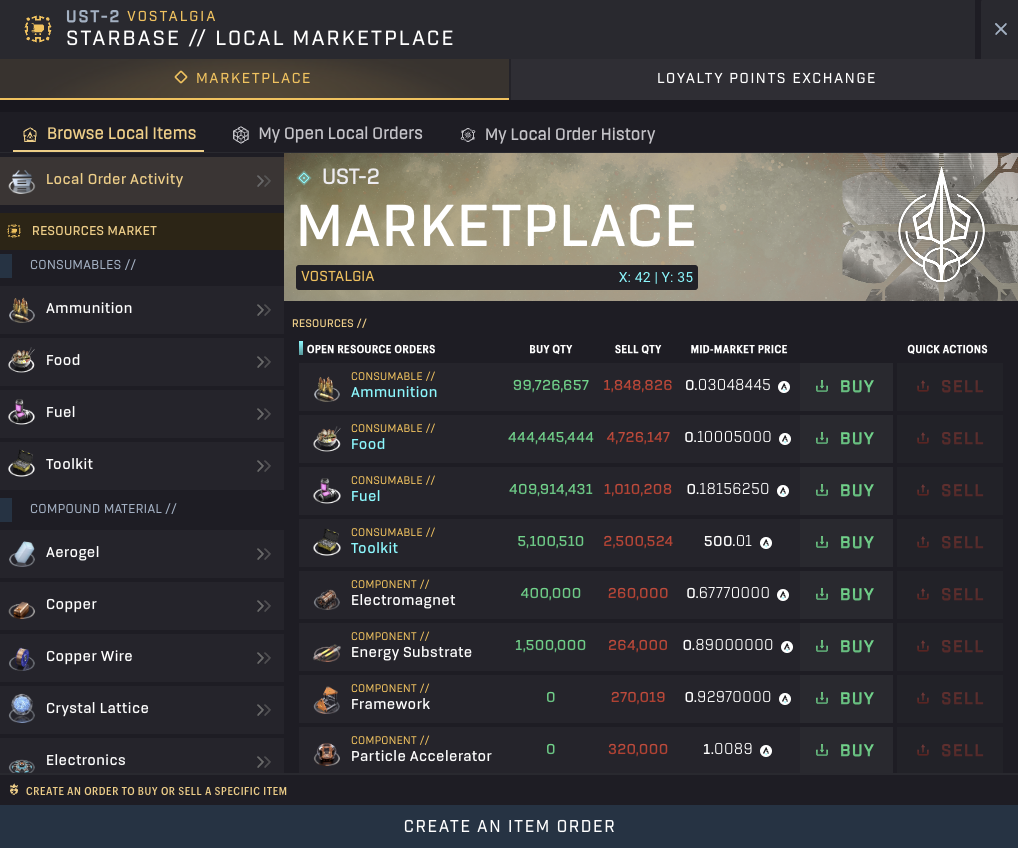
SAGE – Local Marketplace (Note that the Sell buttons are disabled because the player had no items to sell)
There are two rows of tabs at the top:
- The Marketplace tab (default) and the LP Exchange tab.
- Second Row (Marketplace-specific):
- Browse Local Items: The default view, showing all tradable assets at a glance.
- My Open Local Orders: Lists your open orders at the current Starbase.
- My Local Order History: Displays a history of all orders you’ve created at this Starbase.
The Browse Local Items tab is where most of the action happens. The left panel lists all tradable resources, plus a special option at the top named Local Order Activity (selected by default). This option being selected is why the right side displays all items for which orders exist, a summary of the available buys/sell quantities, followed by two quick action buttons to buy or sell items outright.
We’ll dive deeper into the Local Order Activity pane below, but first, we’ll show you how to access the orders for a particular resource.
Visiting a Market
Click on any of the resources in the left list to open the orders that exist for this asset.
![SAGE - Local Marketplace - Food [Sell Orders]](https://assets.aephia.com/wp-assets/5e62e976c309c7a6d2a6930580fd81411b79037dcc291e169d94d06cdb4ffecb.png)
SAGE – Local Marketplace – Food [Sell Orders]
You’ll now see the individual Sell orders that are available, allowing you to buy from specific ones by clicking the Buy button at the far right. Clicking Buy on any order will pop up the Creating an Item Order dialog, which comes in various flavors—as we’ll soon see. In this dialog, you can select (up to the amount available in the order) the amount of that resource you wish to purchase.
At the top of the dialog, you’ll see key market information:
- Total available supply and demand for the resource.
- Mid-market price, representing the midpoint between the highest buy and lowest sell orders.
To switch to the Buyers’ side, toggle the red “Sellers” switch. If you have the resource at the Starbase, you can sell directly to open buy orders in a similar manner.
![SAGE - Local Marketplace - Food [Buy Orders]](https://assets.aephia.com/wp-assets/73d2f43055d846377981ca4661dd7866cfb65c5ee08ada98717a9004eeb6ad02.png)
SAGE – Local Marketplace – Food [Buy Orders]
If you have the resource stored at the Starbase, you will be able to sell into these orders using the Sell button to the right. This will go exactly the same way as buying.
Creating an Order
If you wish to create a new buy or sell order, you can click the Create an Item Order button at the bottom of the dialog. Depending on where you do this, the resulting popup will look different.
If you click this while having a resource’s market selected, you’ll create a new order for that resource. It will show tabs right below the top, allowing you to switch between a Buy and Sell order.
![SAGE - Local Marketplace - Create An Item Order [Resource Market dialog]](https://assets.aephia.com/wp-assets/47e61d24f7c45cd482e66a4cdede3e4d41c89ee4834d16ddb746db129e914502.png)
SAGE – Local Marketplace – Create An Item Order [Resource Market dialog]
Here, the limit depends on the amount of the particular resource you have available (when selling) or the amount of ATLAS you have available (buying).
In this dialog, you’d need to define both the Amount and the Price per Item. If you’re creating a Buy order, this is the price you are willing to pay per item. If it is a Sell order, it’s the price you want to get for each item.
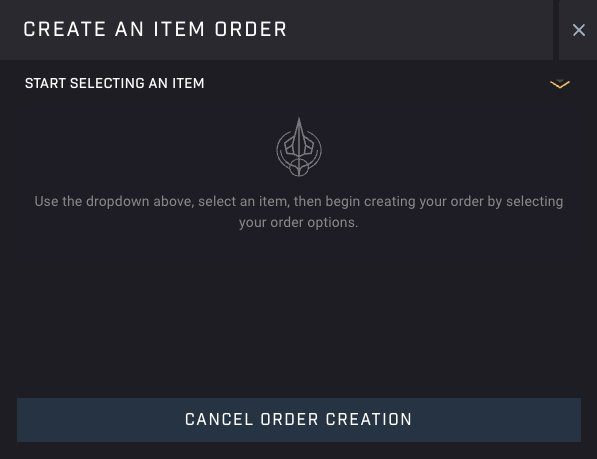
SAGE – Local Marketplace – Create An Item Order [Local Order Activity dialog]
If you click this button while on the Local Order Activity overview, you will be treated to a similar dialog, but you will first have to select the resource you want to trade before it becomes fully visible. Note that the list comes with a filter, so be sure to type the first few letters of the resource you are looking for if you do not feel like scrolling.
If you misclicked, click the resource name at the top of the dialog to simply select another. Fun fact: This also works when you creating an order in a Resource Market.
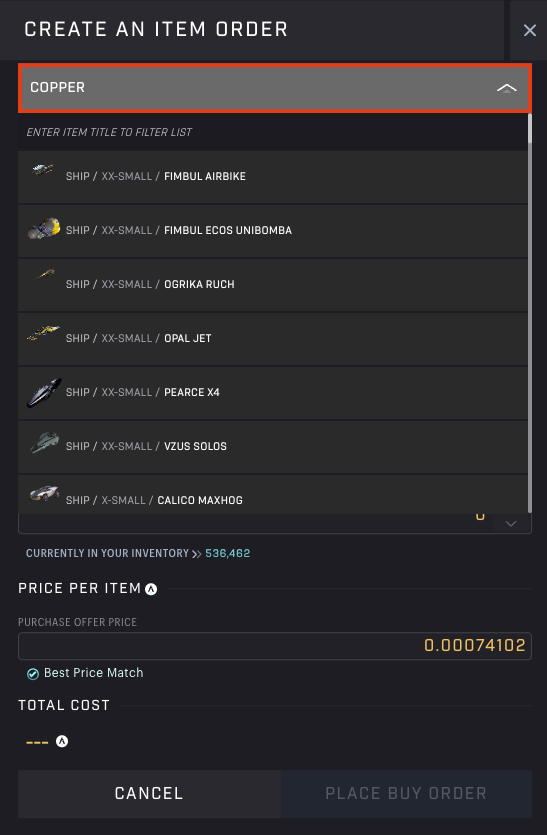
SAGE – Local Marketplace – Create An Item Order [Local Order Activity dialog]
Local Order Activity
When accessing the Local Marketplace on a Starbase, the first thing you see is the Local Order Activity.
Besides showing a quick overview of the total buy and sell orders that exist for all resources plus their midprice, the quick actions here really shine!
When visiting a resource (market), you can acquire some of it from any open sell-order. In this screen, however, you can outright buy (or sell) an amount that exceeds any individual order, as the algorithm will include as many orders as are needed to satisfy your request. And, of course, when buying, the orders included will go from most affordable to least affordable, exactly as you would want it.
This also means the pop-up to create an order looks slightly different from the previous one we saw. Clicking the buy button next to a resource would pop up a dialog such as this:
![SAGE - Local Marketplace - Local Order Activity [Buy Quick Action]](https://assets.aephia.com/wp-assets/77c8d2a4f94f970dd152d8f5d302df7b3004d6575e64a79f5c51a9176394301c.png)
SAGE – Local Marketplace – Local Order Activity [Buy Quick Action]
The maximum here is the total liquidity available on this side of the market. Also, since it will include as many orders as needed, it lists the Maximum Purchase Price and your Total Costs near the bottom. As more (more expensive) orders are included, that Maximum Purchase Price will go up.
Example:
If we open the market for Fuel at the same time, we’d see the overview below. This shows us that as long as we stay below 38,824 Fuel, we should get the best price. When we exceed that number, the overflow will come from the next available order. This will repeat until your order can be completed.
![SAGE - Local Marketplace - Fuel Market [Sell Orders]](https://assets.aephia.com/wp-assets/fd22e02eb84a2272f2fc18f60d4f6f382dfc9cd55e3bf69e6809ac625e41b601.png)
SAGE – Local Marketplace – Fuel Market [Sell Orders]
If we were to acquire 100,000 Fuel through the Local Order Activity, we’d hit the top 3 orders. The pop-up will then show updated pricing information:
![SAGE - Local Marketplace - Local Order Activity [Buy Quick Action]](https://assets.aephia.com/wp-assets/fca87393b7234ece0a272bb48c959900c0b35f6c49b7f4269881d453fbce4483.png)
SAGE – Local Marketplace – Local Order Activity [Buy Quick Action]
Note that the Maximum Purchase Price has now increased to reflect pricing on the last (most expensive) order of the ones required to accommodate the request. It also shows an error (in this case) as that pricepoint lies considerably higher than the most affordable Sell order.
Note that you can not set a price as you are buying directly from the available sell orders. This is also the case if you were to click the Sell button. You could set the amount, but the items will be sold into the market orders.
In conclusion, if you simply need a certain amount of a resource—and you don’t feel like shopping over multiple Starbases—this is the easiest and fastest way to quickly acquire what you need. Because orders will be filled starting at the best price and then moving on to the next best price, there is no negative side-effect to purchasing resources this way.
In short: Use this option if you want to execute the best possible trade for you at that very moment.
The CSS Galactic Market
There exists no dedicated Local Market at the CSS. Instead, you can trade directly on the Galactic Marketplace!
You will notice the Starbase control reads Galactic Marketplace, and similarly, the first view is named Galactic Order Activity.
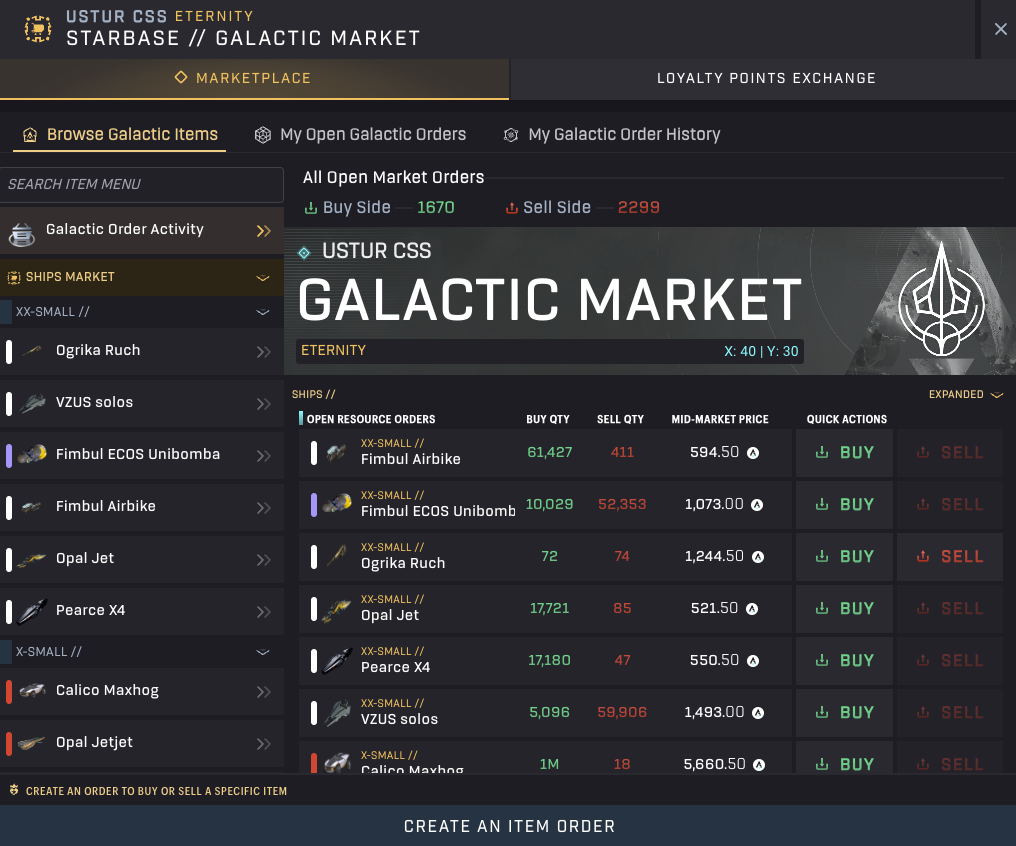
SAGE – Galactic Marketplace – Galactic Order Activity
This option comes with a few interesting twists:
- Instead of only Resources (in various forms), you will have access to ships here as well!
- While you can create orders directly on the Galactic Marketplace, the items will still come from within the game. This also means that the transaction costs required to get the assets out of the game will remain relevant, as this action will still occur in the background.
- Following the above, canceling a sell order here will deposit the items into your wallet, not back into the game.
- This market, being the Galactic Market, will look the same for all three factions.
Fees & Discounts
For as long as the ATLAS Locker has been live (since September 29th, 2022), there has been a 6% fee that is charged to the seller (not the buyer). These fees are split (67/33) between the team and the Star Atlas DAO.
The exact same fee exists in Local Markets. Fortunately, the exact same discounts exist as well!
Locking ATLAS will provide a fee reduction of up to 85%! Below, we include the Discount table for your convenience:
| Tier | Min. ATLAS locked | Fee Reduction | Total Fee | DAO Share |
|---|---|---|---|---|
| 0 | NA | None | 6% | 2% |
| 1 | 10,000 | 10% | 5.4% | 1.8% |
| 2 | 70,000 | 15% | 5.1% | 1.7% |
| 3 | 560,000 | 25% | 4.5% | 1.5% |
| 4 | 5,600,000 | 45% | 3.3% | 1.1% |
| 5 | 72,800,000 | 85% | 0.9% | 0.3% |
ATLAS Locker: Fees and Discounts